Pick a sample or upload your photo
Flip through the sample pairs above, or upload a photo of an empty or lightly furnished room. A single clear angle with visible floor and wall boundaries works best.

Free tool
Flip through real before and after examples, then preview your own empty room photo. Staging your photo takes a free VideoGuru account, and the free plan includes a limited number of photo edits.
Quick answer
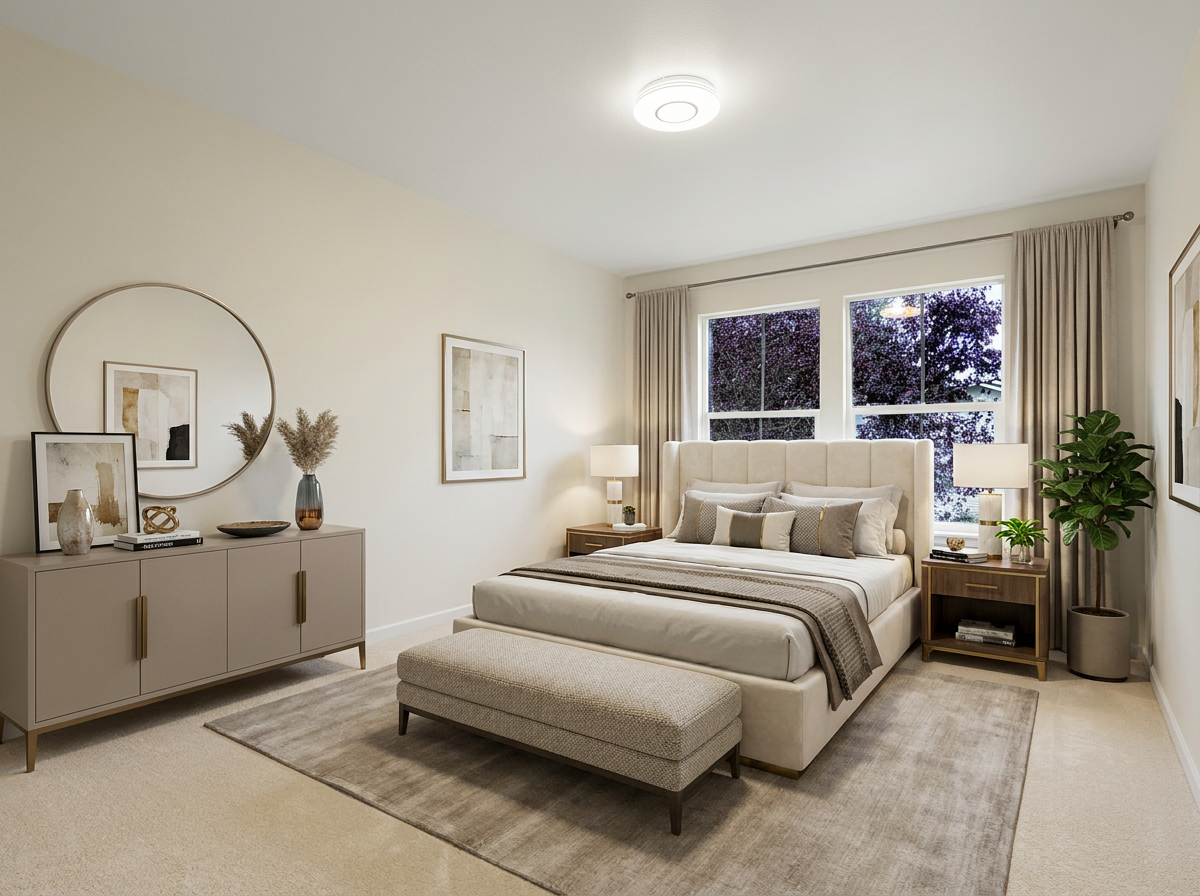
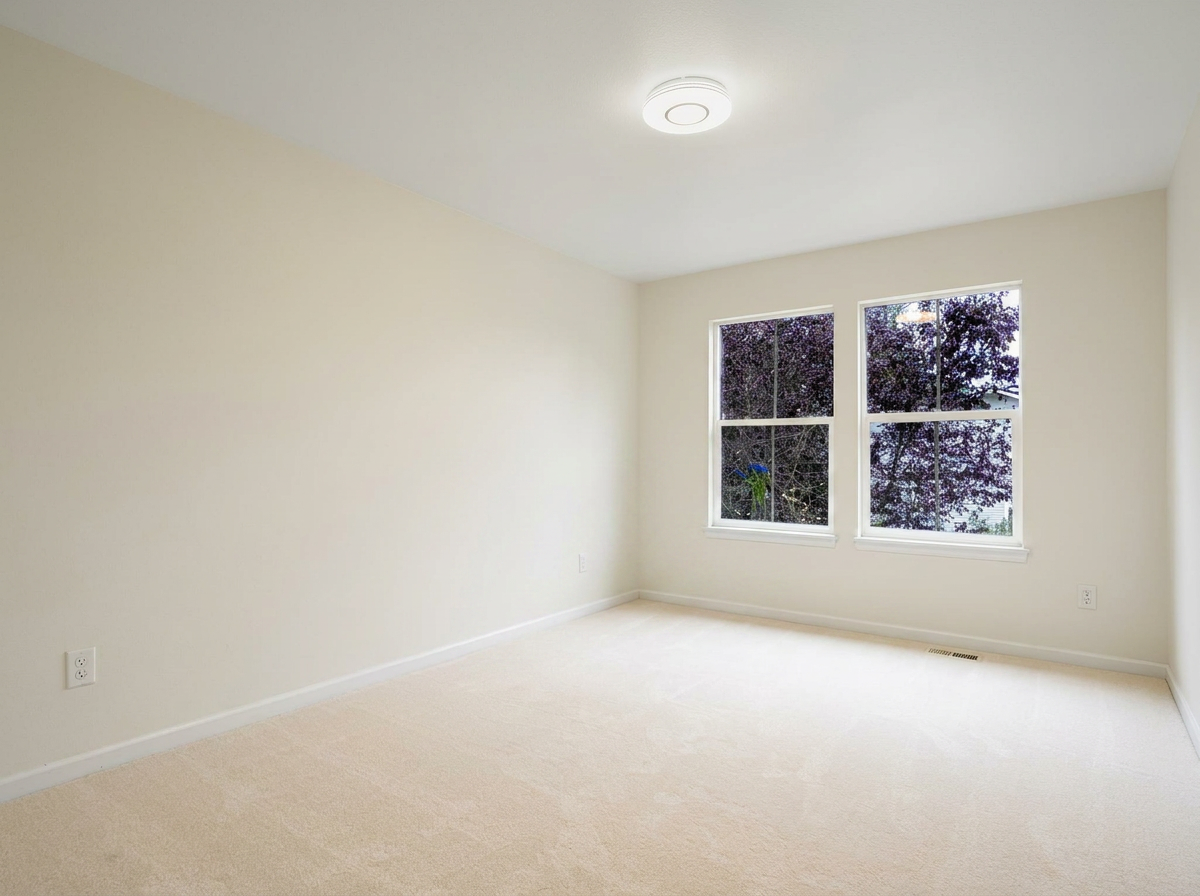
Free virtual staging adds furniture and decor to an empty room photo using AI, so buyers can understand scale, layout, and purpose without a physical staging setup. On this page you can flip through sample before and after pairs and preview your own photo. To generate a staged version of your photo, create a free VideoGuru account. The free plan includes a limited number of photo edits. Keep the original photo and label the staged version as virtually staged when you publish it.
Flip through the sample pairs above, or upload a photo of an empty or lightly furnished room. A single clear angle with visible floor and wall boundaries works best.
Your photo appears in the preview area so you can check framing and lighting before you stage it. Nothing is generated until you create an account.
Sign up for a free VideoGuru account, choose a furniture style, and generate the staged version. Review the before and after side by side.
Download the staged photo for your listing, or select it in the photo-to-video workflow. Edited photos are marked with a star so they are easy to find.
This page is free to browse. You can flip through every sample pair, compare each before and after, and upload your own photo to preview it. None of that requires an account.
Generating a staged version of your own photo requires a free VideoGuru account. That is how you use the virtual staging AI free: the free plan includes a limited number of photo edits, and each generated image counts against that allowance. Virtual staging, decluttering, furniture removal, and restyling all draw from the same pool.
You would move to a paid plan when you stage more photos than the free allowance covers, when you want multi-angle staging for several photos of the same room on a regular basis, or when you produce listing videos at volume. Photo editing generations beyond the included limit use credits, and the amount depends on the plan you choose.
The pricing page shows current plan limits. This page does not quote prices because they can change. If you are comparing options for the best free virtual staging app, check the live numbers on each plan before committing.
Virtual staging adds furniture and decor to a single photo of an empty room. The samples above show virtual furniture staging free to browse, so you can judge the effect before you upload anything. It helps buyers understand purpose and scale, which is the main reason empty rooms photograph poorly. A bare bedroom reads as a box. The same room with a bed, nightstands, and a rug reads as a place someone could live.
The same photo editing workflow covers several related edits. Decluttering removes visual distractions and small personal items while keeping the room structure intact. Furniture removal clears an existing furnished room so it can be restaged in a different direction. Restyle or redesign changes the look of a room that is already furnished but feels dated.
Virtual staging works best on rooms that are clean, well lit, and shot from a stable angle with visible floor and wall boundaries. The AI needs to see where the floor meets the walls to place furniture at a believable scale. A photo taken from a doorway at chest height, showing most of the room, is the typical strong input.
Avoid extreme wide-angle distortion when you can. Stretched corners make furniture look warped at the edges of the frame. Avoid photos where the room is already full of furniture if your goal is to stage it as empty, because the tool will need to remove items first and the result depends on what is behind them.
Use one strong angle per room for the fastest result. If your listing includes several photos of the same living room or open-plan area, group them and use multi-angle staging so the set reads as one real staged space rather than a collection of unrelated images. Pick angles that share enough architecture, such as the same window or fireplace, so the room identity stays clear across the set.
Rules vary by MLS, brokerage, location, and advertising platform, so check your local requirements before publishing. Three practices hold up almost everywhere and will keep you on the right side of most policies.
First, keep the original photo. Many MLS systems require the unstaged version to be available, and buyers who tour the property will see the empty room. Having the original on hand also lets you compare the staged result for accuracy before it goes live.
Second, label the image as virtually staged or digitally altered when required. A short caption on the photo or in the listing remarks is usually enough. Do not present a staged image as a photo of the furnished property.
Third, do not alter permanent features. Staging should add furniture and decor, not change flooring, windows, walls, built-ins, ceiling height, or the view. Review the staged result against the original around those areas before publishing. VideoGuru puts the before and after side by side as part of the workflow, but you remain responsible for local disclosure rules.
Select your staged photos with the rest of the listing images and VideoGuru turns them into a property video with camera motion, music, and your branding. Staged rooms are marked with a star so they are easy to find.
Free plan includes 2 videos per month.
Browsing this page, flipping through the samples, and previewing your own photo are free with no account. Generating a staged version of your photo requires a free VideoGuru account, and the free plan includes a limited number of photo edits. Beyond that allowance, photo editing generations use credits based on your plan. Check the pricing page for current limits.
Convert a daytime exterior photo into a twilight shot.
Open toolTurn property details into a polished, MLS-ready listing description.
Open toolCaptions and post copy for a new listing, open house, or just-sold announcement.
Open toolVirtually stage an empty room photo with AI. Upload the photo, choose a furniture style, review the before and after, add the staged label, and download.
Read guideTurn your listing photos into a real estate video in minutes. Upload photos, set the order, choose 9:16 or 16:9, add music and branding, then export an MP4.
Read guideLast updated September 14, 2026. Outputs are generated by AI and should be reviewed before publishing. See all free tools.